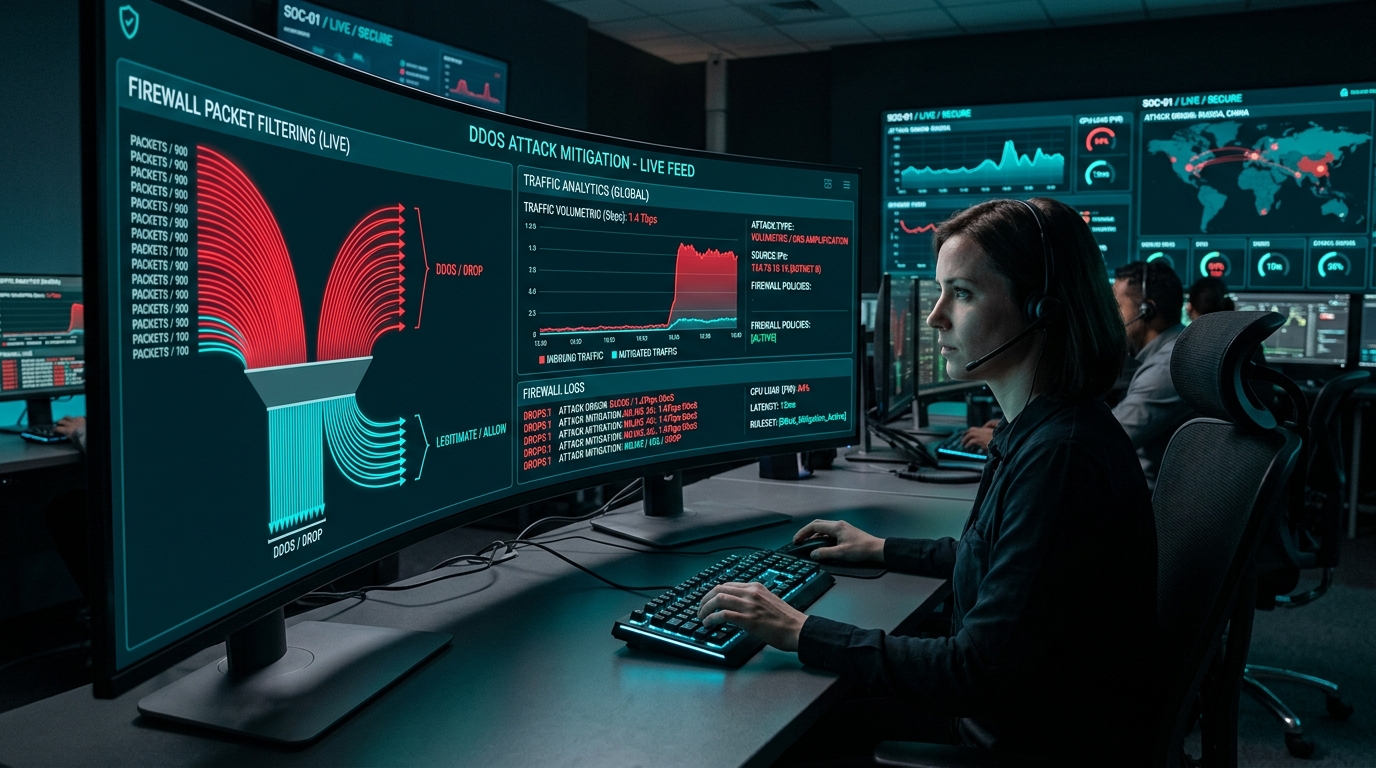
Featured Snippet Summary: A Denial of Service (DoS) attack is a malicious cybersecurity threat that prevents legitimate users from accessing a website or network resource. Attackers achieve this by flooding the target servers and their upstream routers with an overwhelming volume of traffic, exhausting system resources and clogging the internet connection pathways.
In the first quarter of 2000, there were several attacks on very popular Web sites. Most of these were "Denial of Service" attacks -- attacks that served to prevent regular readers and customers of the sites from getting a response to their requests. How did someone manage to do this? They did it by flooding the servers, and their attached routers, with requests for information at a rate far too great for the system to handle.
Most routers have rules in the configuration table that won't allow millions of requests from the same sending address. If too many requests from one address are received in a short period of time, the router simply discards them without forwarding. The people responsible for the attacks knew this, so they illicitly planted programs on many different computers. These programs, when triggered, began sending thousands of requests a minute to one or more Web sites. The programs "spoofed" the IP address of the sender, placing a different false IP address on each packet so that the routers' security rules wouldn't be triggered.
When the packet floods were triggered, millions of requests for information began to hit the targeted Web sites. While the servers were being heavily taxed by the requests, the real impact was to the routers just "upstream" from the servers. Suddenly these routers, which were robust but of a size appropriate for normal traffic, were getting the levels of requests normally associated with Internet backbone routers. They couldn't handle the massive number of packets, and began discarding packets and sending status messages to other routers stating that the connection was full. As these messages cascaded through the routers leading to attacked servers, all paths to the servers were clogged, legitimate traffic couldn't get through the logjam, and the attackers' goals were accomplished.
Web content providers and router companies have placed new rules designed to prevent such an attack in the configuration tables, and the companies and universities whose computers were used to launch the attacks have worked to prevent their systems being used maliciously. Whether their defenses, or the new attacks designed by criminals, will prevail remains to be seen.
Tracing a Message
If you're using a Microsoft Windows-based system, you can see just how many routers are involved in your Internet traffic by using a program you have on your computer. The program is called Traceroute, and that describes what it does -- it traces the route that a packet of information takes to get from your computer to another computer connected to the Internet. To run this program, click on the "MS-DOS Prompt" icon on the "Start" menu. Then, at the "C:\WINDOWS>" prompt, type "tracert www.lasmallnetworks.com". When I did this from my office in Florida, the results looked like this:
The first number shows how many routers are between your computer and the router shown. In this instance, there were a total of 14 routers involved in the process (number 15 is the lasmallnetworks.com Web server). The next three numbers show how long it takes a packet of information to move from your computer to the router shown and back again. Next, in this example, starting with step six, comes the "name" of the router or server. This is something that helps people looking at the list but is of no importance to the routers and computers as they move traffic along the Internet. Finally, you see the Internet Protocol (IP) address of each computer or router. The final picture of this trace route shows that there were 14 routers between the Web server and me and that it took, on average, a little more than 2.5 seconds for information to get from my computer to the server and back again.
You can use Traceroute to see how many routers are between you and any other computer you can name or know the IP address for. It can be interesting to see how many steps are required to get to computers outside your nation. Since I live in the United States, I decided to see how many routers were between my computer and the Web server for the British Broadcasting Corporation. At the C:\WINDOWS> prompt, I typed tracert www.bbc.com. The result was this:
You can see that it took only one more step to reach a Web server on the other side of the Atlantic Ocean than it did to reach a server two states away!